I
简
BEA Corporate Online – Request Reset PIN
The Authorised Person(s) can reset their own Login PIN / Signer PIN / Phone PIN, or reset PINs for other users through the “Request Reset PIN” function.


Request Reset PIN
1
Getting Started
2
Fill in Details
3
Review Details
4
Enter One-Time Password
5
Verification
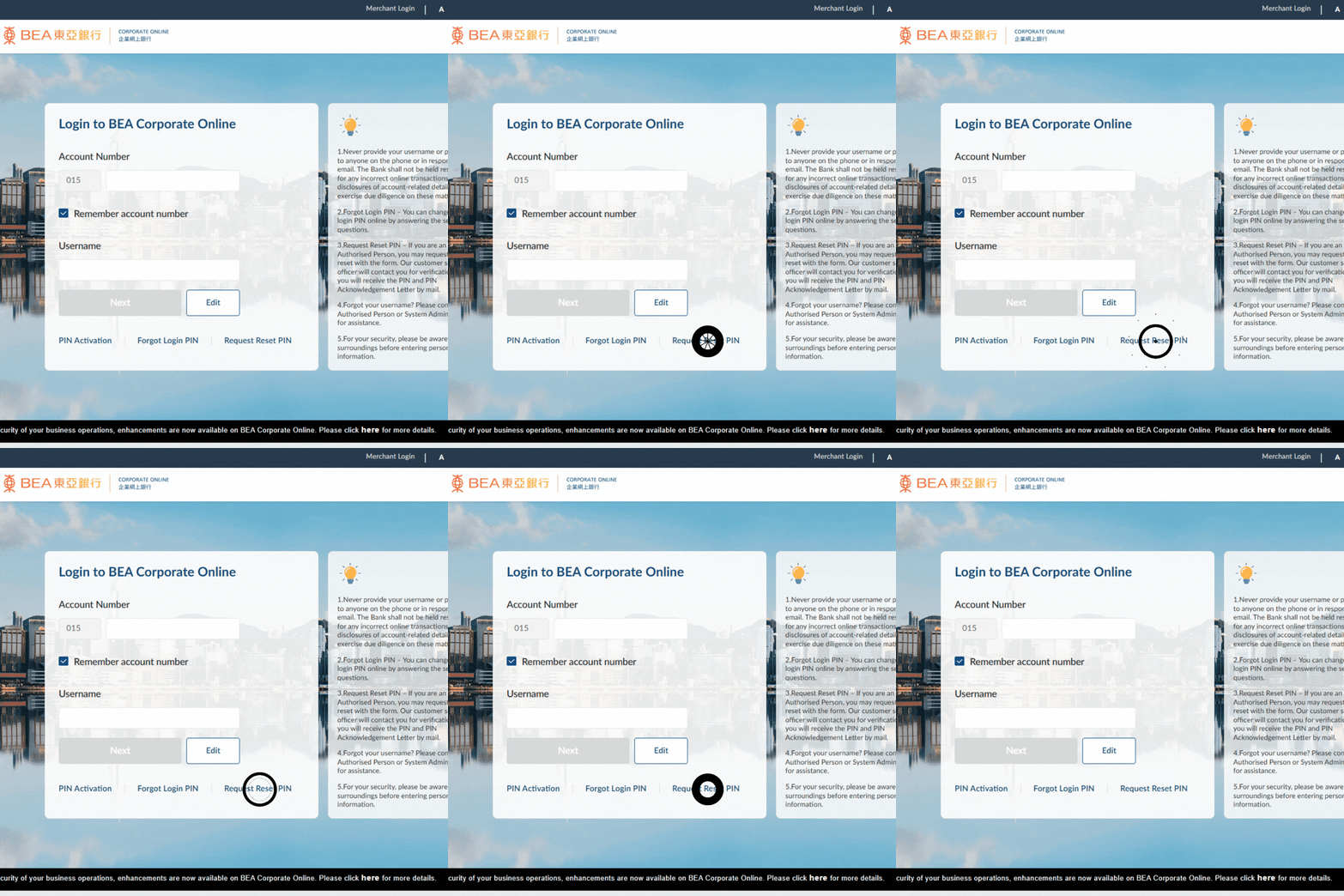


1
Getting Started
- Go to the BEA Corporate Online Login Page
- Click “Request Reset PIN”
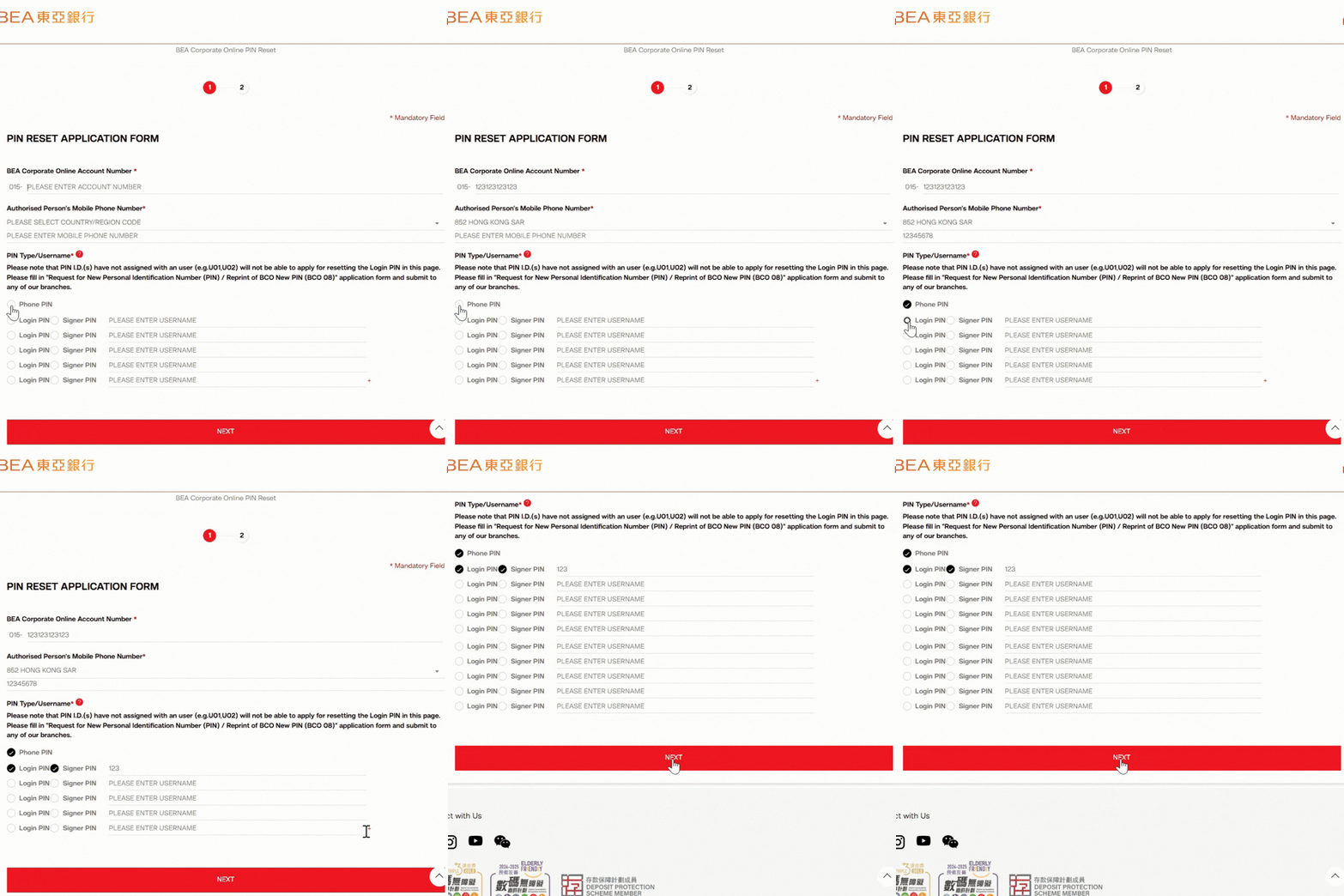
2
Fill in Details
- Enter your “BEA Corporate Online Account Number” and “Authorised Person’s Mobile Phone Number”
- Select the “PIN Type” you would like to reset*
Note: If you want to reset multiple PIN Types, click the “+” button to add more rows - Click “Next”
*If “Login PIN” or “Signer PIN” is selected as the “PIN Type”, please also enter “Username” or “PIN ID”
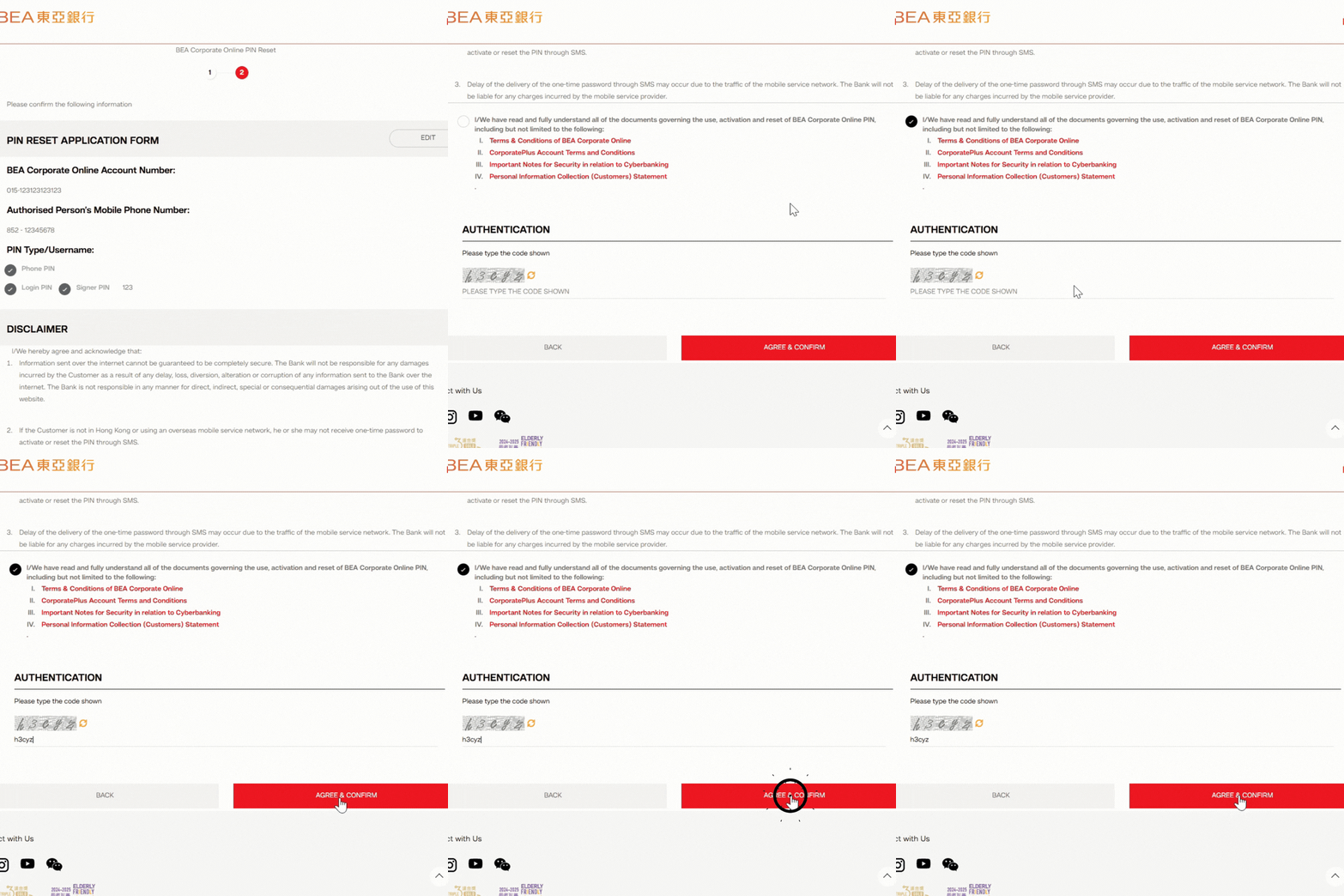
3
Review Details
- Verify the PIN Reset application details
- Select the checkbox to indicate that you have read and fully understood the Disclaimer
- Enter the Authentication Code
- Click “AGREE & CONFIRM”
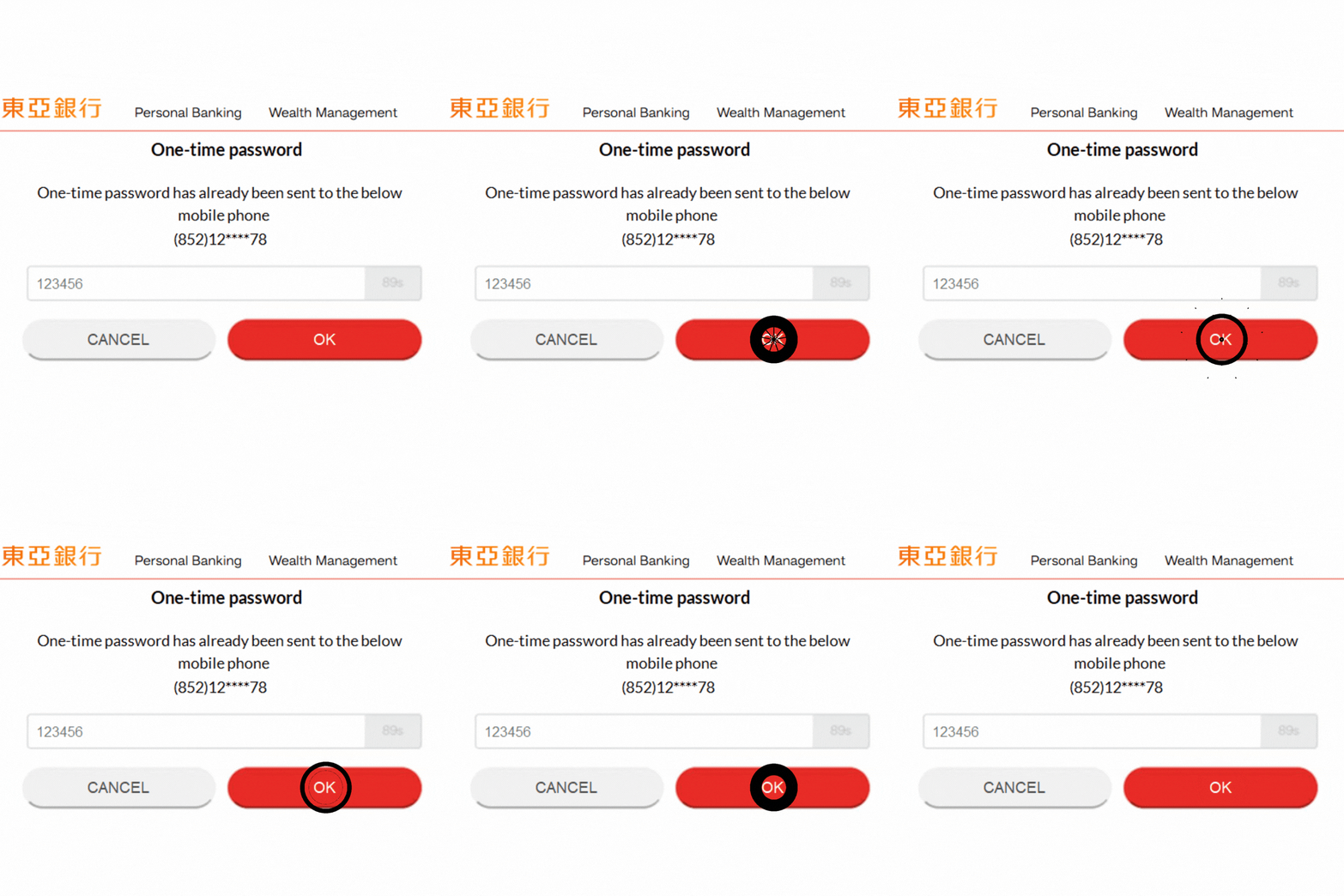
4
Enter One-Time Password
- A one-time password will be sent to the Authorised Person’s Mobile Phone number entered on the first page of the application
- Enter the one-time password
- Click "OK"
5
Verification
- SMS and email notifications will be sent to customers after application submission
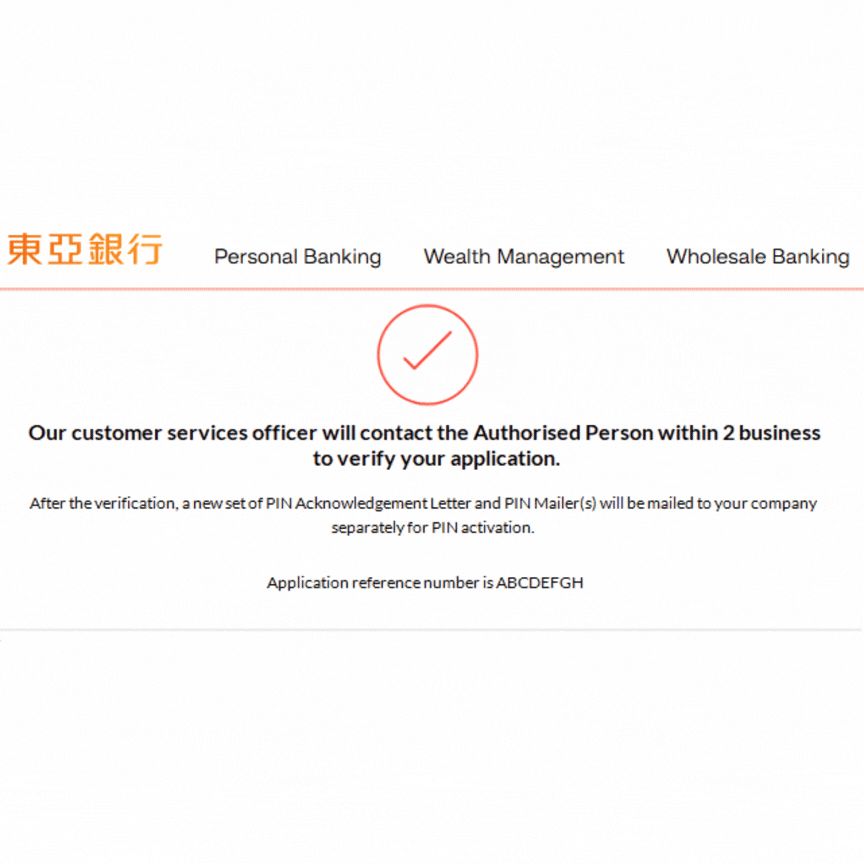
- A Customer Service representative will contact the Authorised Person at the mobile phone number entered on the application within 2 business days for verification
- After verification, an Acknowledgement Letter with the new PIN(s) and PIN Mailer(s) will be mailed to your company separately for activation
*Third-party delivery fees may apply depending on the specific circumstances. Any applicable fees will be quoted for your approval prior to service confirmation.
i
For more details, please visit Security Settings Guide.